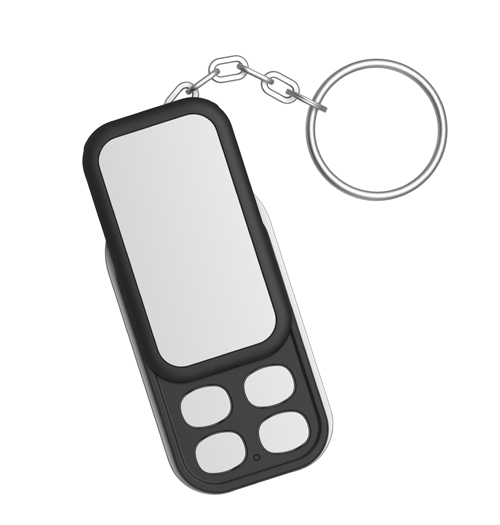
Aeon Labs Z-Wave Key Fob, Gen5
How to add to VENUS app
- Adding/Removing
- Press “Add button” (button ‘+’) in app
- Press the Learn button on your Key Fob with the pin or press the bottom-right action button. Your Key Fob’s green light will begin to pulse.
- Wait for VENUS scan & detect this device and inform in app
How to add/remove device(s) to private Z-Wave network
Key Fob has been designed with the ability to add Z-Wave devices to its network.
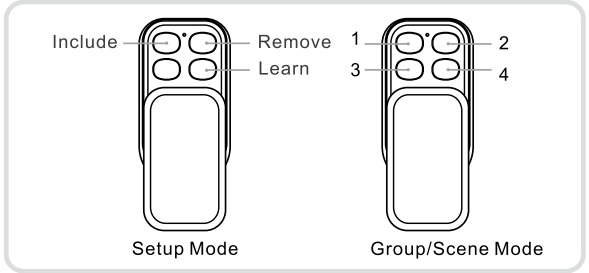
- Change KeyFob to Setup mode
- Press the include button, your Key Fob’s green light will pulse slowly.
- Press the Z-Wave button on the device that you wish to add.
- Once the inclusion is successful, the green light on your Key Fob will stay lit for 2 seconds and then blink again. Otherwise, the red light on your Key Fob will stay lit for 2 seconds before the green light blinks again.
- Once you’re finished, press any button on your Key Fob to exit this mode.
To remove device from private Z-Wave network:
- Press your Key Fob’s remove button. Your Key Fob’s red light will pulse slowly.
- Press the Z-Wave button on the device that you wish to remove. If you’re unsure of how to do this, refer to its user manual.
- If the removal is successful, the green light on your Key Fob will stay lit for 2 seconds and then its red light will blink. Otherwise, the red light will stay lit for 2 seconds before again blinking.
Configuration description
None
Factory reset
If you want to reset your Key Fob, press and hold the Mode button 20 seconds. If successful, after 20 seconds, the green Led will illuminate for 2 seconds and then off. Otherwise, repeat the process again.