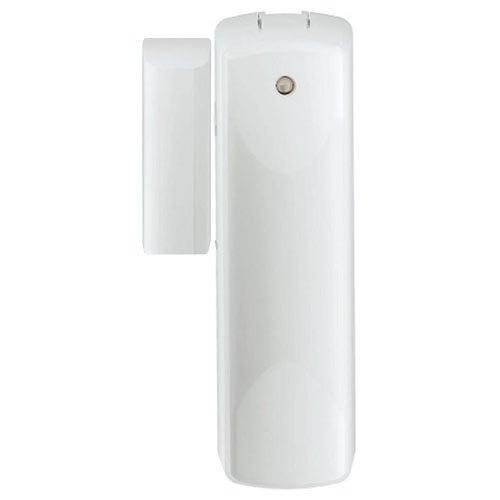
Ecolink Door Window Sensor
Brief information
- Remotely monitor doors and windows. Stay in touch and control - Our Door & Window Sensor allows you to remotely monitor individual doors and windows - from your computer, tablet or smart phone - Stay in touch with a text message or email when activity is detected. Stay in control by activating a lighting scene when a door is opened.
- Simple installation and setup - no drilling required.
- Compatible Controllers: SmartThings, Staples Connect, Vera, HomeSeer, Nexia and Piper
- Includes 3V CR123A Battery which can last up to 6 years
- NOT Compatible Controllers: Home Depot Wink, ADP Pulse, DSC, Interlogix, 2Gig, Napco and Honeywell
How to add to VENUS app
- 1. Activation
- Press “Add button” (button ‘+’) in app
- Remove the plastic pull-tab from the back of device
- Wait for VENUS scan & detect this device and inform in app
- 2. Reset then re-add
- Press “Add button” (button ‘+’) in app
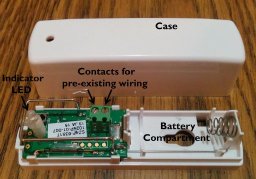
- Remove battery for at least 5 seconds, re-install battery to reset
- Remove battery and insert again to add
- Wait for VENUS scan & detect this device and inform in app
Wake up information
- By default, a sensor is configured to send Wake Up Notification frames every three hours.
How to add/remove associated device(s) to
To add associated device(s) to this sensor, below action is required:
- Add z-wave notified-devices (which will be associated to this sensor) to VENUS
- Select Associate button and then select notified-device(s) to add
- Wake-up this sensor: remove battery and then re-install
- If successful, pop-up notification displays in VENUS app
To remove associated device(s) from this sensor, below action is required:
- Select Associate button and then select notified-device(s) to remove
- Wake-up this sensor: remove battery and then re-install
- If successful, pop-up notification displays in VENUS app
Configuration description
Trigger OFF to associated device
- Enable this feature device will trigger OFF signal to associated device when door is closed.
- Available:
- Trigger OFF signal to associated devices
- No trigger OFF signal to associated devices
Default: Trigger OFF signal to associated devices
Parameter 99, 1 byte size